 LeBroCro
Creating WordPress mega menus using the Gutenberg editor
 Giannis KoulourisMar 20, 20245 min read
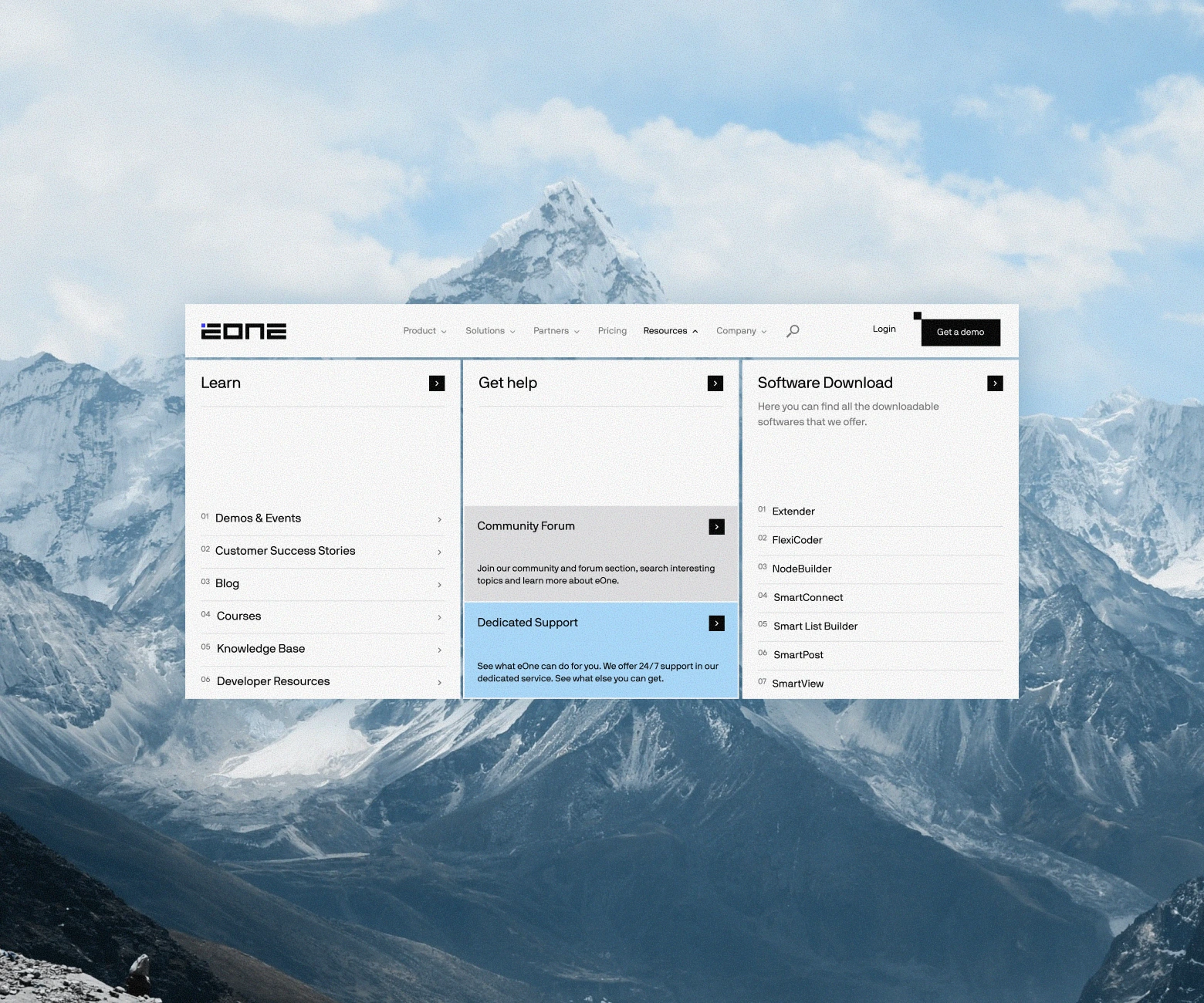
Building a website with a user-friendly and scalable navigation system is crucial. This blog post dives into the technical aspects of our custom mega menu solution. We’ll explore how we leverage WordPress’s classic menus and integrate them with custom Gutenberg blocks to create a dynamic and manageable navigation experience.
Introduction
When it comes to building a scalable and modular CMS for our clients, our go-to recommendation often involves implementing a WordPress solution accompanied by custom Gutenberg blocks. This way, we develop a fast & secure CMS that our clients can easily manage and scale according to their needs.
WordPress itself comes with some built-in “core” blocks which are flexible and allow users to build simple layouts easily. Often these “core” blocks are not enough for building more advanced layouts & designs, therefore we need to extend Gutenberg editor’s functionality, adding custom blocks tailored to our client needs. This not only enhances their editing experience but also contributes to an elevated and streamlined content creation process.
We opt for a “Hybrid Theme” approach, where we leverage Gutenberg features, empowering our clients to effortlessly create new pages using the custom blocks and modules we build specifically for them, while ensuring alignment with brand guidelines, design system, and overall visual coherence.
Custom mega menus functionality, based on Gutenberg editor
While managing page content is entirely in the client’s hands, the website’s header and footer are strategically implemented through code. This intentional separation enables clients to concentrate solely on page editing, ensuring a user-friendly experience while retaining full control over their content.
Implementing the header and footer through code doesn’t limit client control over their content.
For the website’s navigation, we are using the classic WordPress menus extended with custom functionality for mega menus that allow clients to populate mega menus content using Gutenberg blocks. Through that workflow, clients can easily populate mega menus and attach them to menu items.
How we developed custom mega menus functionality using Gutenberg blocks
In a nutshell, the mega menu logic is as follows: clients populate the mega menus on a custom post type created specifically for this purpose. Within the ‘mega menu’ post type they can use custom Gutenberg blocks that we develop for building up mega menu content. The populated mega menus can be then linked to a top-level menu item through a custom field. Finally, the custom WordPress Nav Menu Walker comes into play, retrieving the mega menu content and displaying it as a child element on that menu item.
Let’s take it step by step:
Step 1: Create ‘mega menu’ custom post type
This is a custom post type that we use to populate the mega menus. It’s not public, which means it doesn’t have a single or archive page and we can only use custom blocks created specifically for building the mega menus layout.
Step 2: Create custom Gutenberg blocks, to be used for building the mega menus layouts
Let’s take a closer look at some of the custom blocks that we developed specifically for building mega menu layouts, and explore snippets of code from some essential files that we use for registering these Gutenberg blocks.
Mega menu columns block
This block is responsible for adding the columns on the mega menus; it only accepts the ‘mega menu column’ as the inner block. By default, it has an equal-width, 3-column layout, but is flexible enough to support multiple layout variations. Of course, these layouts can be updated depending on individual project requirements.
Mega menu column block
This block is the inner block used inside the ‘mega menu columns’ parent block. And we use it as a wrapper for our column content.
Navigation link card block
This block gives us the ability to add link cards on our mega menus, it outputs a card that will be linked to a destination specified by the user. It supports attributes like title, description, background image, and provides customization options for both its default and hover state colors.
Some other blocks that we use inside the mega menus editor include
- Navigation List: Outputs a list which accepts navigation links as inner block
- Navigation Link: This is the block that we use for adding links to our navigation list
Step 3: Link mega menus with menu items
Now let’s take a closer look at how we can add a custom field to our menu items, where it will be used to connect the menu items with the mega menus.
Step 4: Display mega menu content using custom WordPress Nav Menu Walker
In this step, we will explore the custom WordPress Nav Menu Walker class we’ve developed and how we utilize it to display our mega menus within the main menu.
Custom WordPress_Nav_Menu class
Output the menu on website’s header
That’s about it when it comes to the functionality and the logic for building the mega menus. Now it’s just a matter of some custom CSS & Javascript code to handle the appearance & functionality of our mega menus.
Wrapping up
In this blog post we’ve explored our tailored approach to WordPress mega menus, and how we integrated classic WordPress menus with the modern Gutenberg editor to create a streamlined and user-friendly way of managing mega menus. This custom approach showcases the adaptability and limitless capabilities of using the Gutenberg editor to create unique and dynamic website experiences.